HashiCorp Vault

HashiCorp Vault can be easily set up using Docker Compose. Below, I'll guide you through the process of creating a basic setup for Vault using Docker Compose.
Prerequisites
- Make sure you have Docker and Docker Compose installed on your machine.
Docker and Docker Compose Installation
For Ubuntu/Debian-based systems
 #!/bin/bash

# Make the script executable
chmod +x "$0"

# Update the system and install required packages
sudo apt-get update -y
sudo apt-get install curl apt-transport-https ca-certificates software-properties-common -y

# Add Docker’s official GPG key
curl -fsSL https://download.docker.com/linux/ubuntu/gpg | sudo apt-key add -

# Add the Docker repository to APT sources
sudo add-apt-repository "deb [arch=amd64] https://download.docker.com/linux/ubuntu $(lsb_release -cs) stable"

# Update the package database with Docker packages from the newly added repo
sudo apt update -y

# Check the Docker version to install
apt-cache policy docker-ce

# Install Docker
sudo apt install docker-ce -y

# Enable Docker to start on boot
sudo systemctl enable docker

# Check Docker status
sudo systemctl status docker

# Install Docker Compose
sudo apt install docker-compose -y

# Print success message
echo "Docker and Docker Compose have been successfully installed!"
For Red Hat-based
#!/bin/bash

# Make the script executable
chmod +x "$0"

# Update the system and install required packages
sudo dnf update -y
sudo dnf install -y yum-utils curl

# Add Docker’s official repository
sudo yum-config-manager --add-repo https://download.docker.com/linux/centos/docker-ce.repo

# Install Docker
sudo dnf install -y docker-ce docker-ce-cli containerd.io

# Enable and start Docker
sudo systemctl enable --now docker

# Check Docker status
sudo systemctl status docker

# Install Docker Compose (standalone binary)
sudo curl -L "https://github.com/docker/compose/releases/latest/download/docker-compose-$(uname -s)-$(uname -m)" \
  -o /usr/local/bin/docker-compose

sudo chmod +x /usr/local/bin/docker-compose

# Verify Docker Compose installation
docker-compose --version

# Print success message
echo "Docker and Docker Compose have been successfully installed on AlmaLinux!"
Docker Install Script for Oracle Linux
#!/bin/bash

# Make the script executable
chmod +x "$0"

# Update the system
sudo dnf update -y

# Install required dependencies
sudo dnf install -y dnf-utils curl ca-certificates gnupg lsb-release

# Set up the Docker repository
sudo dnf config-manager --add-repo https://download.docker.com/linux/centos/docker-ce.repo

# Enable Docker CE repo for Oracle Linux (same as CentOS)
sudo dnf config-manager --set-enabled docker-ce-stable

# Install Docker
sudo dnf install -y docker-ce docker-ce-cli containerd.io docker-buildx-plugin docker-compose-plugin

# Start and enable Docker service
sudo systemctl enable --now docker

# Verify Docker is running
sudo systemctl status docker

# Create a symlink for docker-compose (if using the Docker plugin)
sudo ln -s /usr/libexec/docker/cli-plugins/docker-compose /usr/local/bin/docker-compose

# Verify docker-compose installation
docker compose version

# Print success message
echo "Docker and Docker Compose have been successfully installed on Oracle Linux!"
Step 1: Create a Docker Compose File
Create a new directory for your Vault project:
mkdir vault-docker
cd vault-docker
Create a docker-compose.yml file in this directory with the following content:
version: '3.8'

services:
  vault:
    image: hashicorp/vault:latest
    container_name: vault
    ports:
      - "8200:8200"
    environment:
      - VAULT_DEV_ROOT_TOKEN_ID=myroot
      - VAULT_DEV_LISTEN_ADDRESS=0.0.0.0:8200
    cap_add:
      - IPC_LOCK
    volumes:
      - vault_data:/vault/file
    command: server -dev

volumes:
  vault_data:
Step 2: Start Vault
Run the following command to start the Vault service using Docker Compose:
docker-compose up -d
Verify that Vault is running by checking the logs:
docker-compose logs -f
Step 3: Interact with Vault
Once Vault is running, you can interact with it using the Vault CLI or HTTP API. To use the CLI, you can run a command in the Vault container:
docker exec -it vault sh
Inside the container, you can initialize and unseal the Vault, but since we're using the -dev mode, it's already unsealed and initialized with the root token set to myroot.
Set the Vault address and token in your terminal:
export VAULT_ADDR='http://127.0.0.1:8200'
export VAULT_TOKEN='myroot'
Now you can run Vault commands. For example, to check the status of the Vault:
vault status
Step 4: Stopping Vault
When you're done, you can stop the Vault service with:
docker-compose down
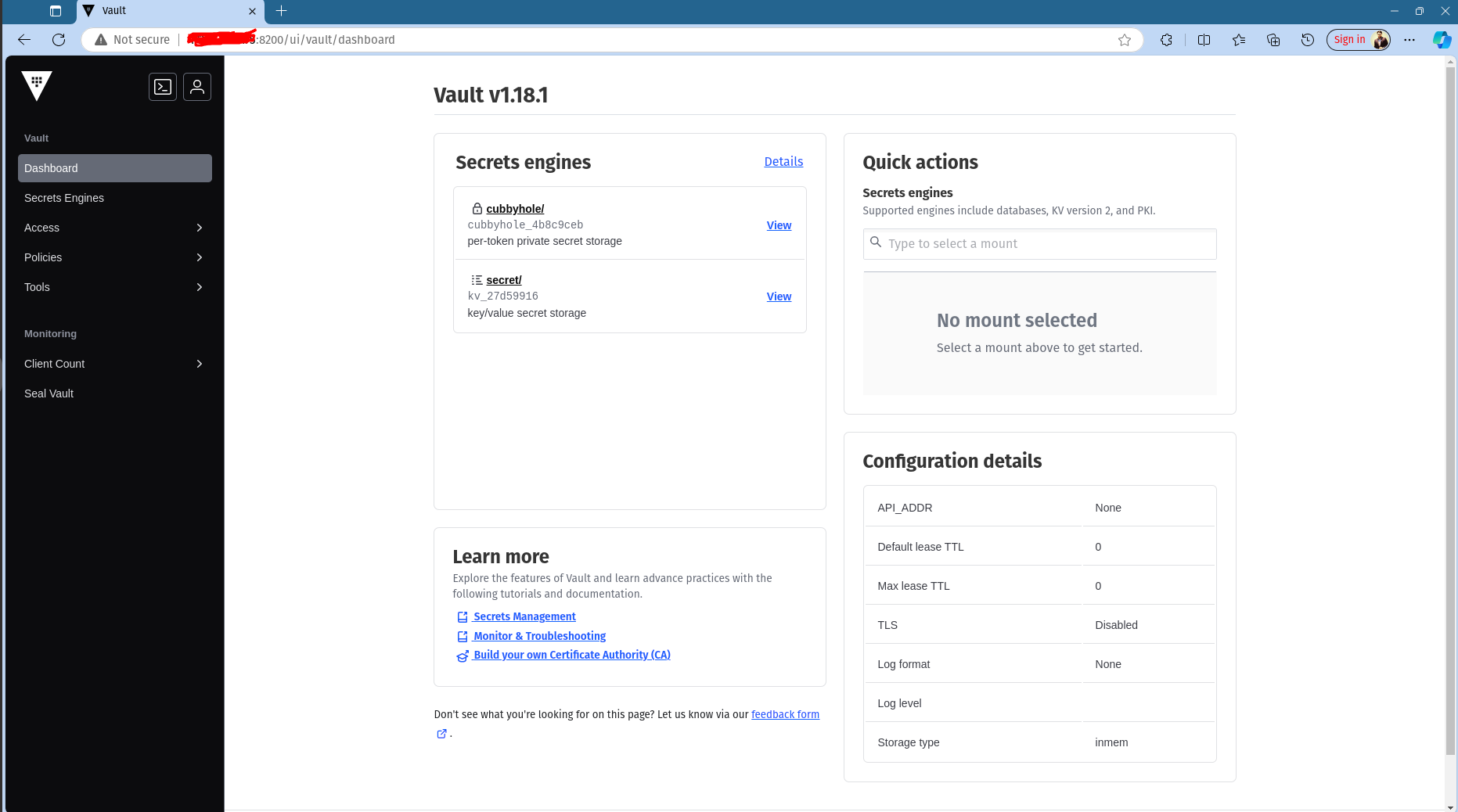
Notes
The above setup uses Vault in development mode (
-dev). This is not suitable for production use. In production, you would need to configure storage backends, authentication methods, and other security settings.The root token
myrootis a very simple token for development. In a production setup, you should use more secure methods for authentication and token management.


